


Key takeaways
- Fix supplier data at the point of import, not on the website. Every manual fix downstream has to be repeated next update.
- Define your own product structure first, then map each supplier onto it. Never let a supplier's format become your format.
- Validation rules should stop incomplete products from publishing automatically, rather than relying on someone to notice.
- Keep a record of every import so you can see what changed, when, and roll back mistakes quickly.
Every supplier has their own idea of what a product file should look like. One sends colours in a single cell separated by commas. Another puts dimensions in the description. A third renames half their columns every season. If that data flows straight to your website, your customers see the mess.
The fix is not working harder on the website. It is putting a repeatable cleaning process between your suppliers and your sales channels. Here is the process we see work for distributors and wholesalers with large, multi-supplier catalogues.
1. Define your own product structure first
Before you touch a single supplier file, decide what a complete product looks like for your business. Which attributes does every product need? Which only apply to certain categories? What units, naming conventions and formats will you use?
- A standard set of core fields: SKU, name, brand, category, short and long description.
- Category-specific attributes, such as print area for promotional products or thread size for fasteners.
- Fixed formats for units (millimetres, kilograms), colours and sizes.
- Rules for titles, for example Brand + Product type + Key attribute.
2. Map each supplier onto your structure
With your structure defined, create a mapping for each supplier: which of their columns feeds which of your fields, and what transformation is needed on the way. Save it so the next file from that supplier imports the same way without anyone rebuilding it.
| Supplier column | Your field | Transformation |
|---|---|---|
| Item Code | Supplier SKU | Trim spaces, uppercase |
| Colours | Colour options | Split on commas into separate option values |
| Dims (cm) | Width, Height, Depth | Split and convert centimetres to millimetres |
| Desc | Long description | Strip HTML and supplier marketing claims |
| Cat | Category | Map supplier category codes to your category tree |
3. Normalise values, not just columns
Matching columns is only half the job. The values inside them need the same treatment. Navy, NAVY, Nvy and Dark Blue might all mean the same colour to a person, but to a website filter they are four separate options and a frustrating search experience.
- Build value lists for colours, materials and sizes, and map supplier variations onto them.
- Standardise units and number formats so filters and comparisons work.
- Fix capitalisation and remove supplier-specific codes from customer-facing names.
- Strip formatting and HTML that will break your storefront's layout.
4. Validate before anything publishes
Validation is the step most businesses skip, and the one that saves the most embarrassment. Set rules that define when a product is ready to sell, then stop anything that fails them from reaching a channel.
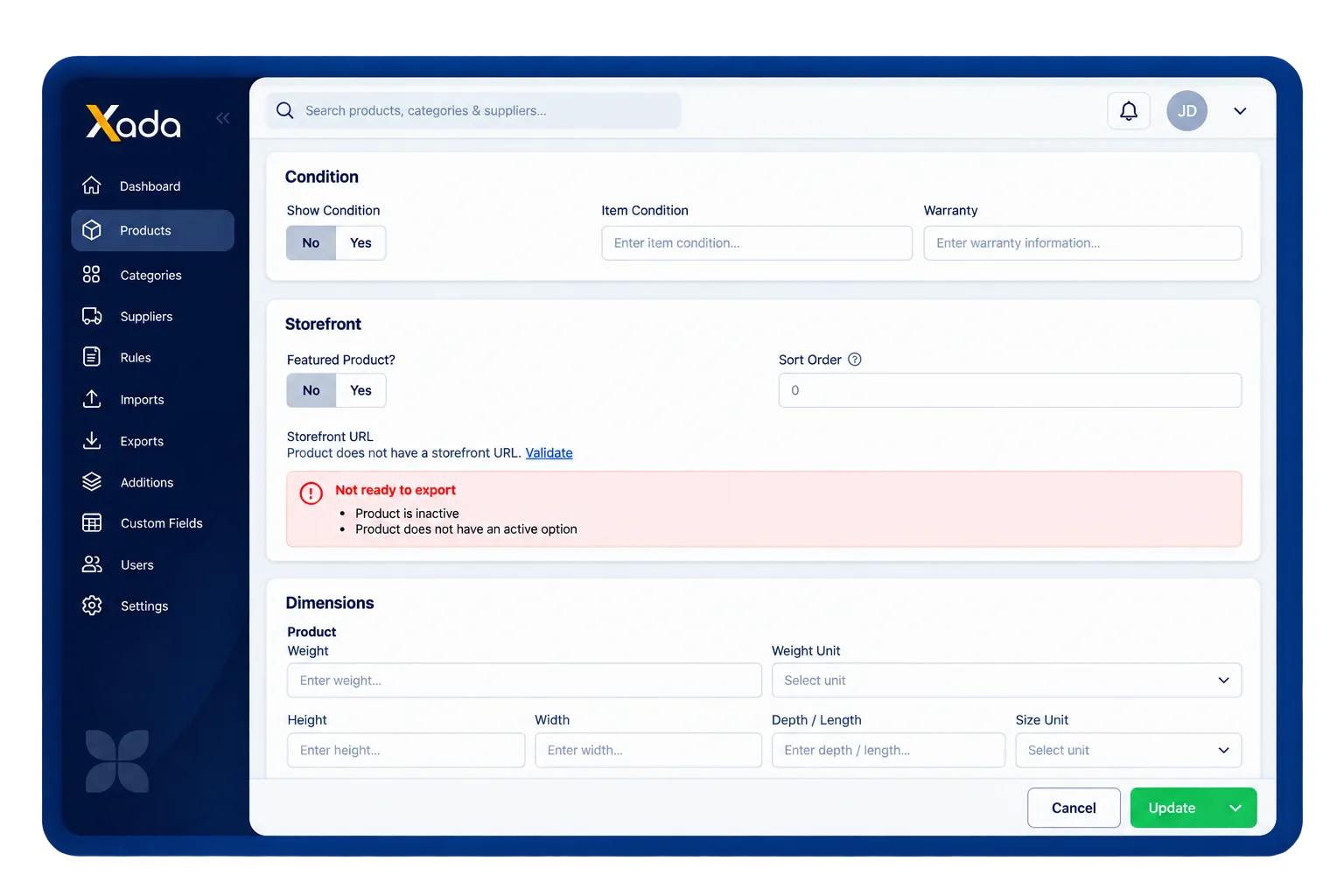
Good validation rules are specific. Rather than a vague completeness score, they say exactly what is wrong: no image, no price on an active option, a description under 50 words, a missing compliance field for a regulated category.
5. Enrich what suppliers don't give you
Supplier data is rarely written to sell. Descriptions are thin, copied from the manufacturer, or identical to every other distributor carrying the same range. That hurts conversion and search rankings alike.
Once data is clean, enrich it: write descriptions around what your buyers care about, add attributes that power filtering, link images and documents to the right variants, and connect related products. AI-assisted description tools can draft content from attributes, which a person then checks and refines.
6. Keep an audit trail of every import
Supplier files change constantly. When a price jumps unexpectedly or a range disappears from your site, you need to answer three questions fast: what changed, which import changed it, and how do we undo it? A logged history of every import makes that a minute's work instead of an afternoon's.
Make the process repeatable
The goal is a process that runs the same way every time, whoever is on shift. Spreadsheets and macros can get you started, but they depend on the person who built them. A PIM like Xada turns each of these steps into saved mappings, rules and validations that run automatically on every import. See how in our data validation and import features, or read about Data Connections for API, CSV, FTP and SFTP options.
Frequently asked questions
What is the most common problem with supplier product data?
Inconsistency. Each supplier uses different column names, units, value formats and category structures, so data that looks fine in isolation clashes once it is combined into a single catalogue.
Should supplier data be cleaned in Excel or in a PIM?
Excel works for a one-off clean-up. For ongoing supplier updates, a PIM is more reliable because mappings, transformations and validation rules are saved and run automatically on every import.
How often should supplier data be updated?
As often as suppliers change it. Pricing and availability may change weekly or daily, while descriptions and specifications change less often. Scheduled imports keep both current without manual work.